Posted on Leave a comment

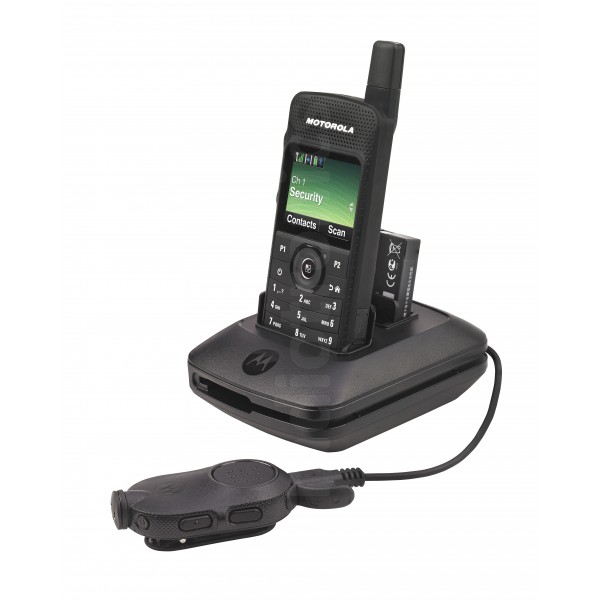
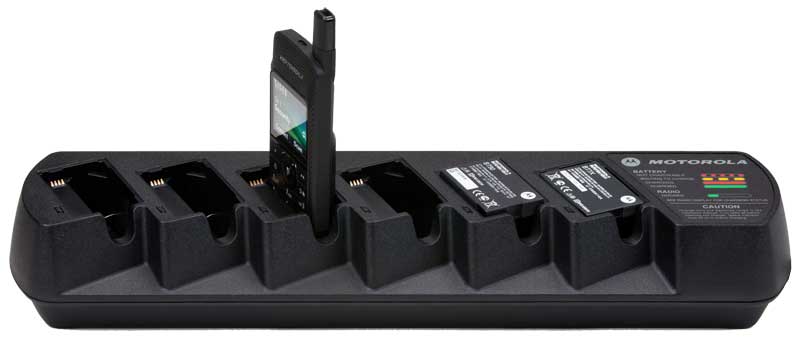
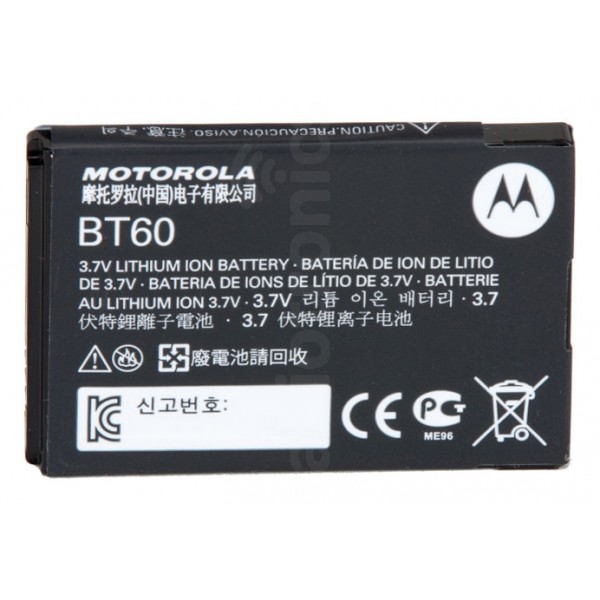
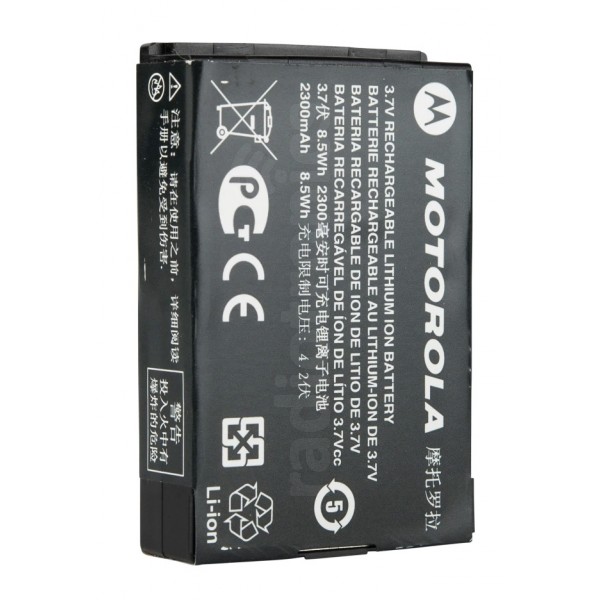
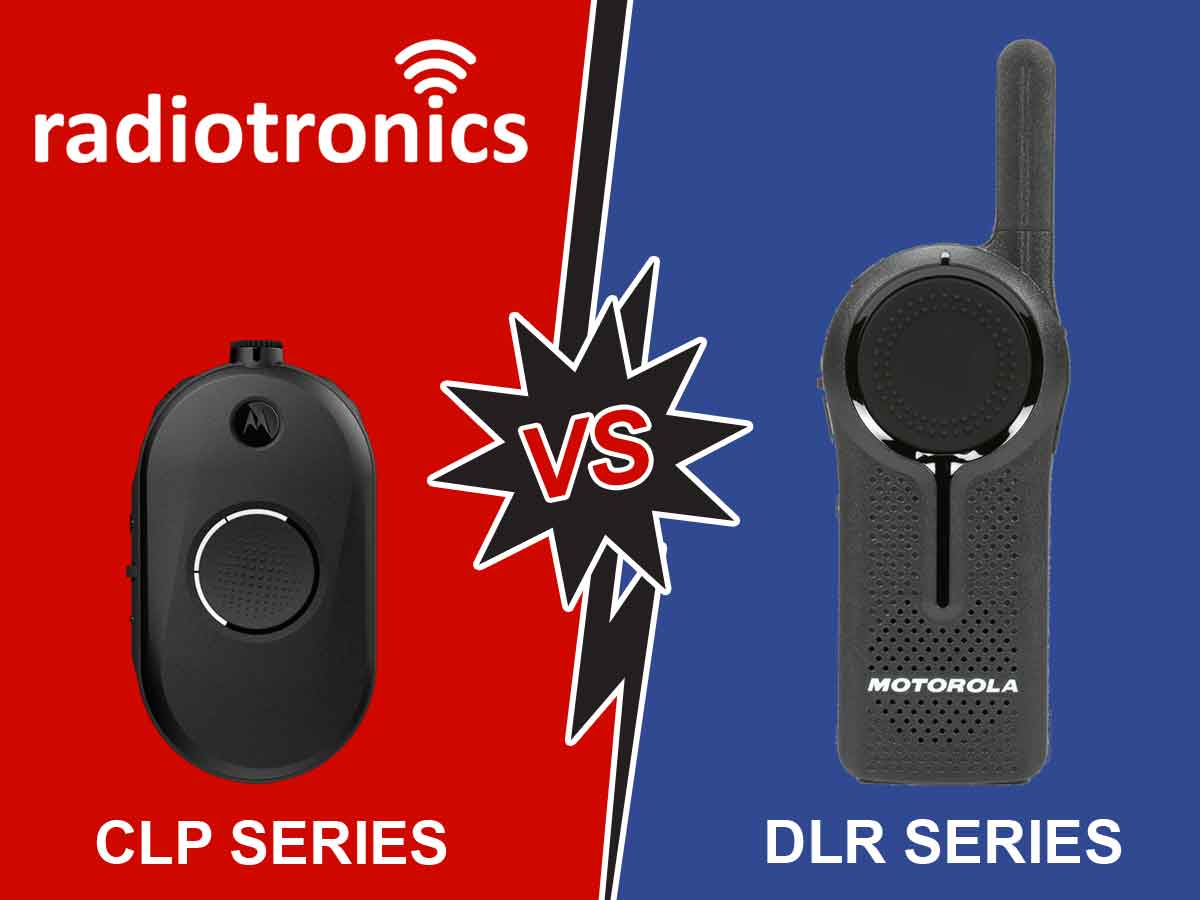
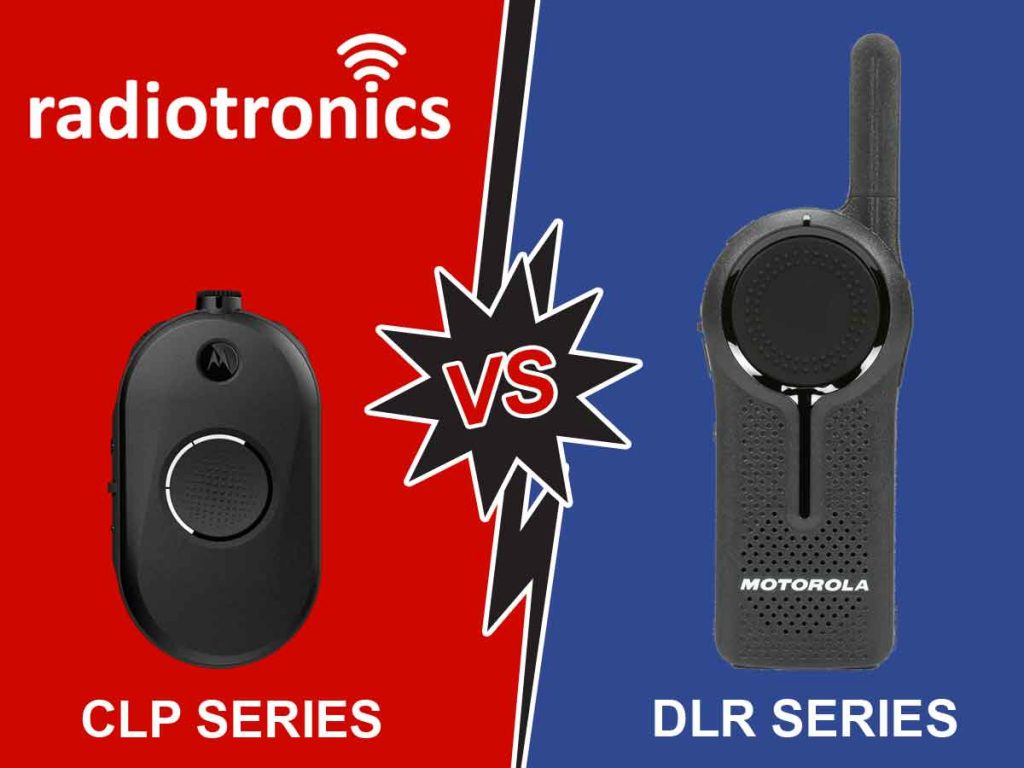
Motorola CLP107 (or CLP107e) vs. DLR1060

Motorola CLP107e Vs. DLR1060

Here at Radiotronics, we get asked almost daily:

Which is best, the CLP107 (or CLP107e) or the DLR1060?

Answer: There is no short answer. But this article should offer enough information to help prospective buyers to decide.

TLDR: If you don’t already have any existing radios, choose the Motorola DLR1060

Motorola CLP Series Overview

Motorola CLP is a small, compact and lightweight two-way radio made up from 3 models. CLP107 is the most basic model, CLP117 is exactly the same as a CLP107 but with built-in bluetooth (for wireless earpieces) and, as of 2020, there is a new model called CLP107e.

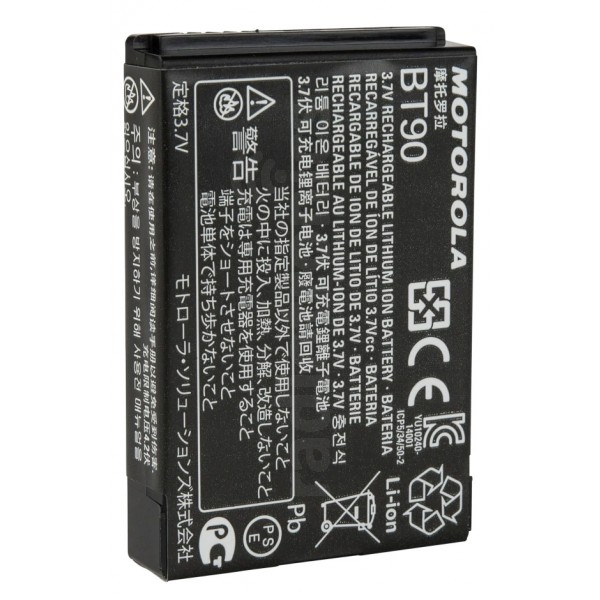
Note on the CLP107e: The CLP107e does not share any accessories with the previous models. The earpieces are different. Even the battery and bnattery door is different. Only the charger is the same.

Important – Licence Required: A common myth is the Motorola CLP series does not need a licence. This is wrong. In Australia, any radio that does not meet the UHF CB type-approval criteria (which the CLP does not) requires an ACMA-issued licence. If you have been told this by a radio dealer, they’ve misunderstood the Motorola CLP series altogether. Stick with Radiotronics.
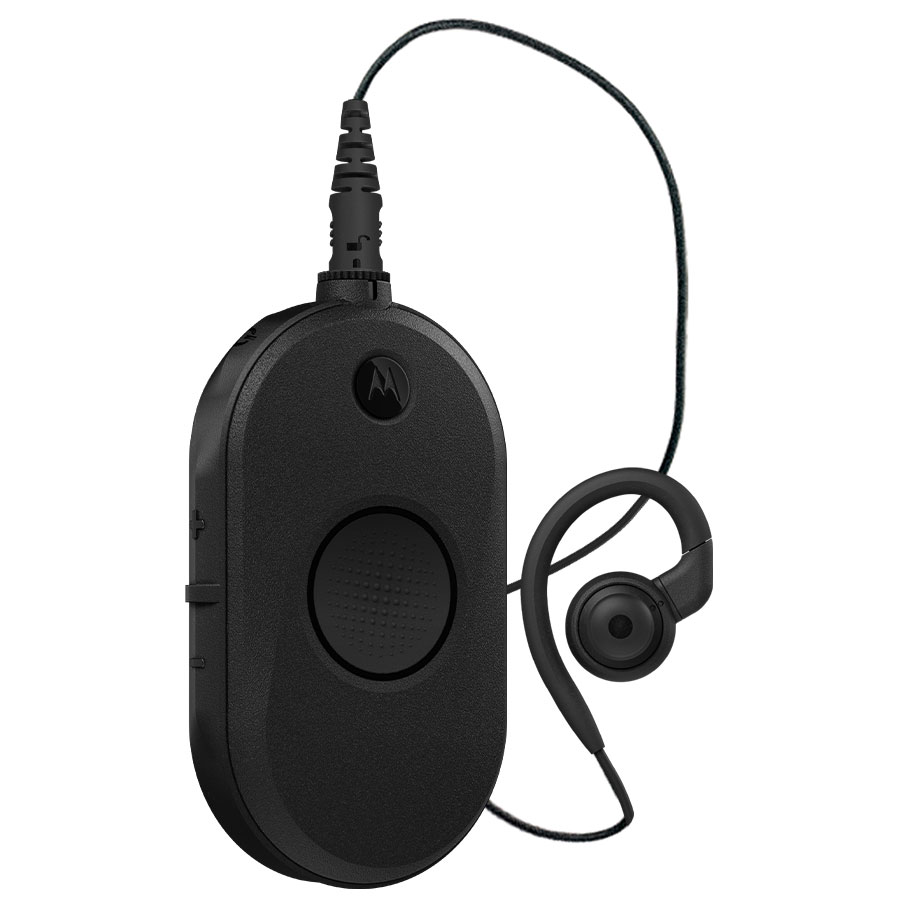
Motorola CLP107e

Pros

  • Small & Compact
  • 8 Hours Life (5/5/90 Duty Cycle)
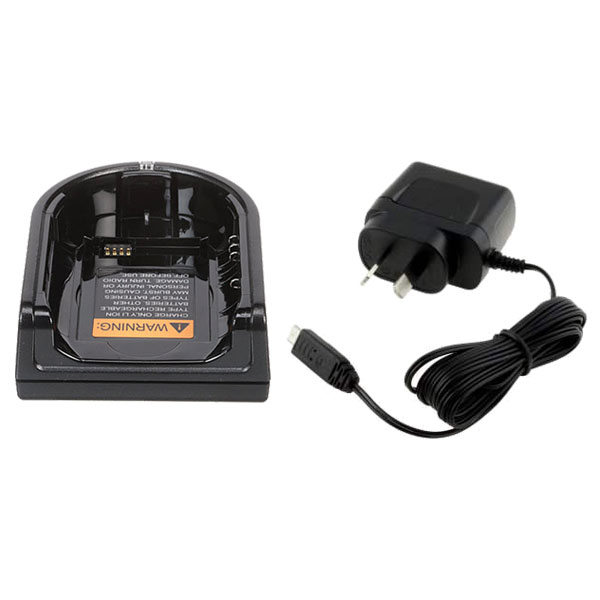
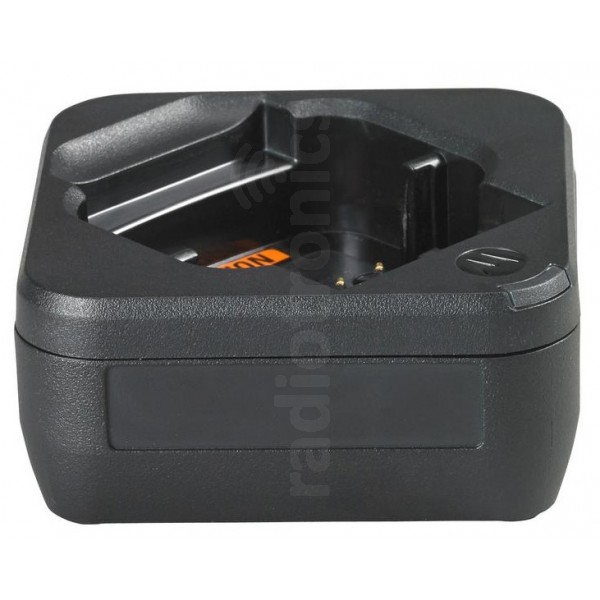
  • Single & Multi-Way Chargers
  • Can be used with a siganl boosting repeater

Cons

  • Expensive ACMA-Issued Licence Required
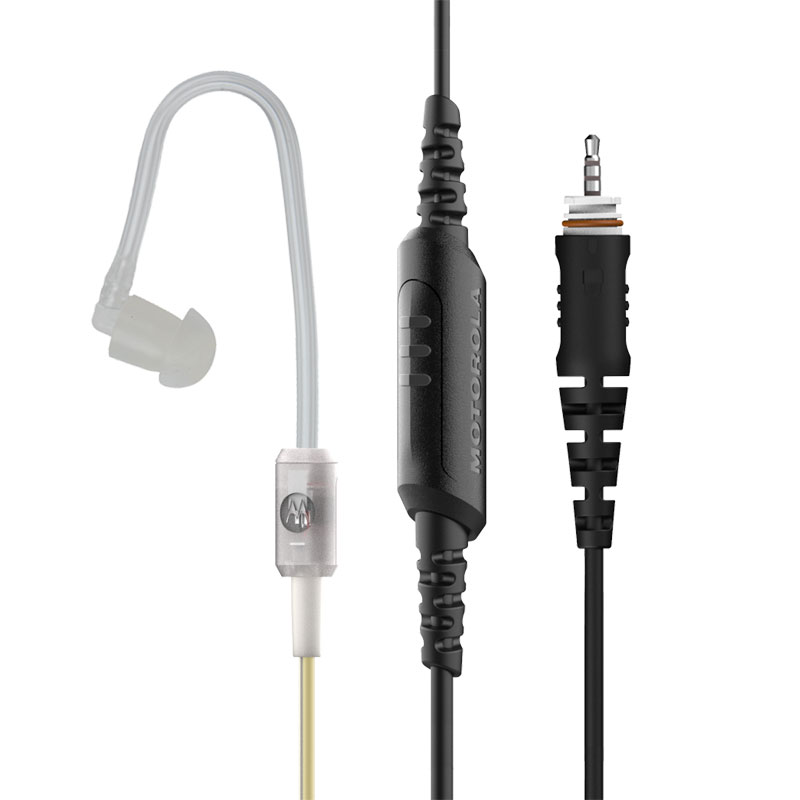
  • Requries Earpiece to Operate
  • Analogue (Scratchy Audio)
  • Very Limited Range

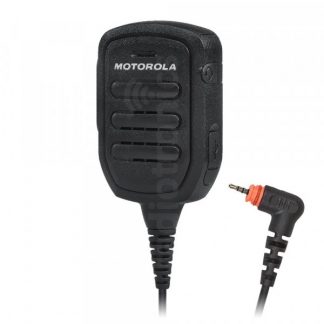
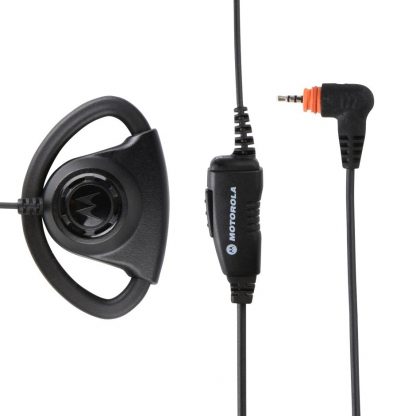
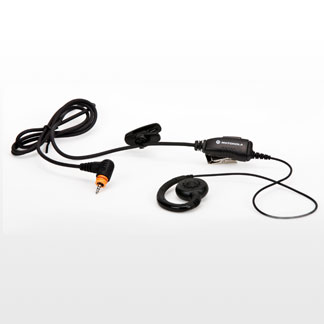
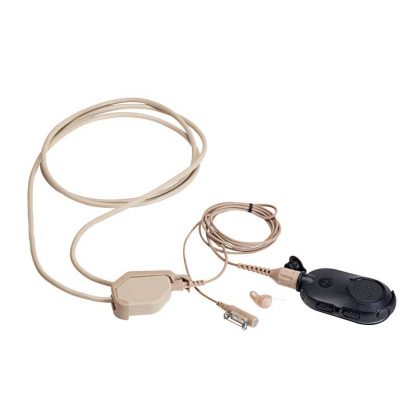
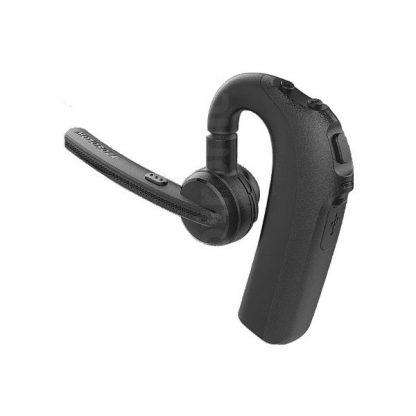
Motorola CLP Accessory Options
Motorola DLR1060 Overview

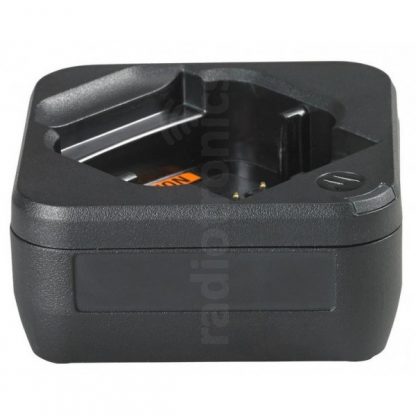
The DLR1060 is a completely licence-exempt digital two way radio that has an 8-hour battery, can be used with or without an earpiece, and has the option of a single charger or a multi-unit charger.

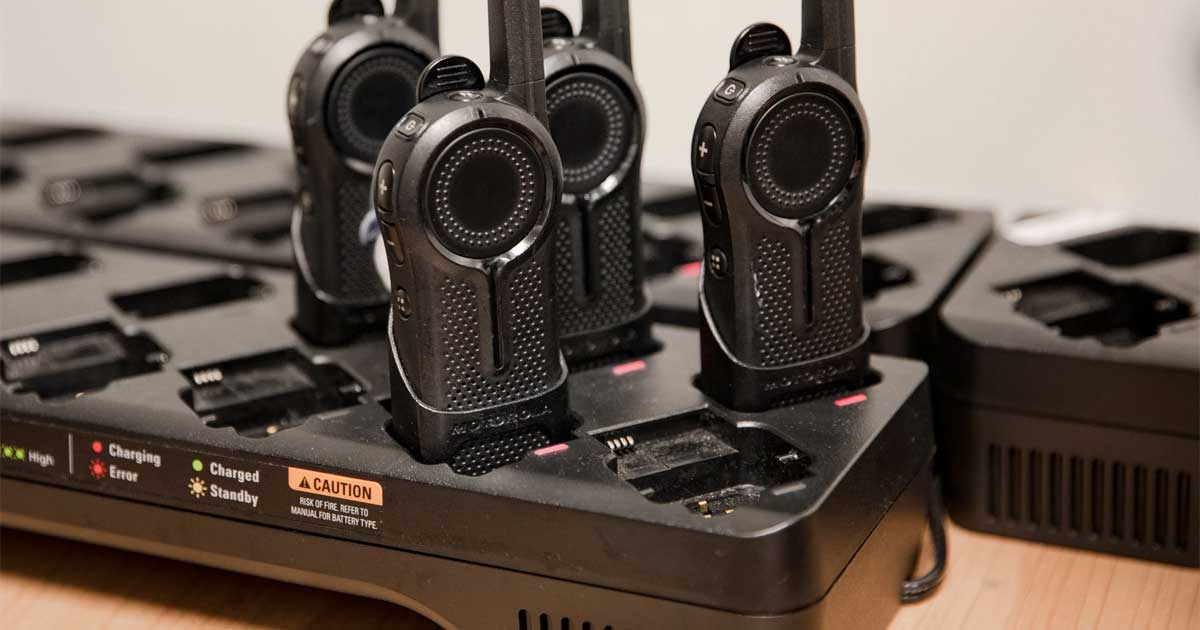
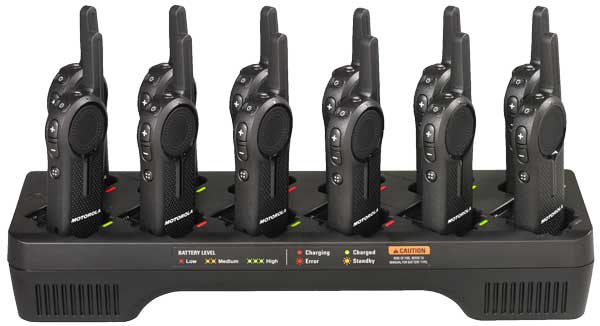
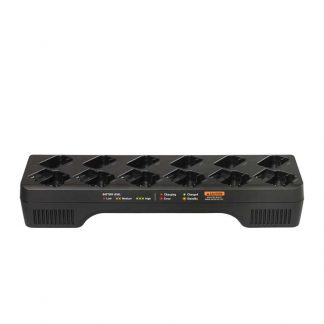
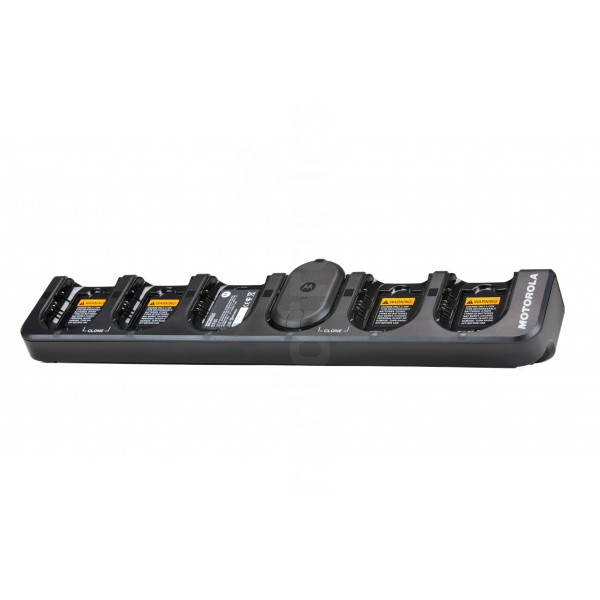
12-Way Multi Charger: The DLR1060 has a 12-position multi-charger that’s virtually the same price (if not cheaper) as some of the 6-way chargers available for other model radios. The advantage of this is that you’ll already have plenty of charge slots for your fleet to grow.

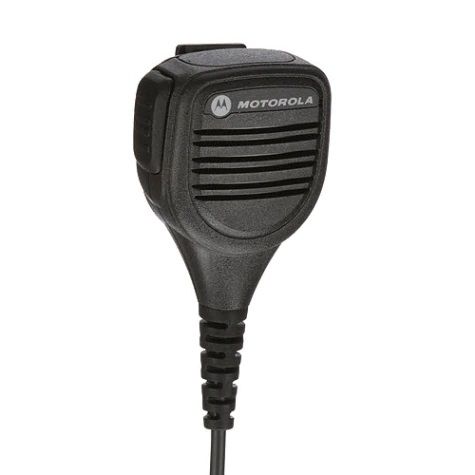
With or Without Earpieces: Unlike the CLP series which must be used with an earpiece, the DLR1060 is much more like a conventional two-way radio that can be used with or without an earpeice, you choose.

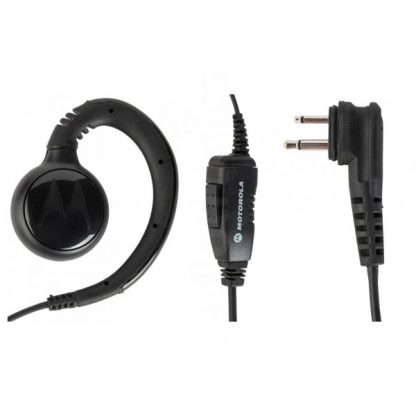
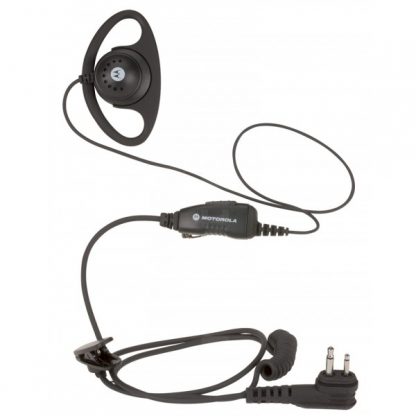
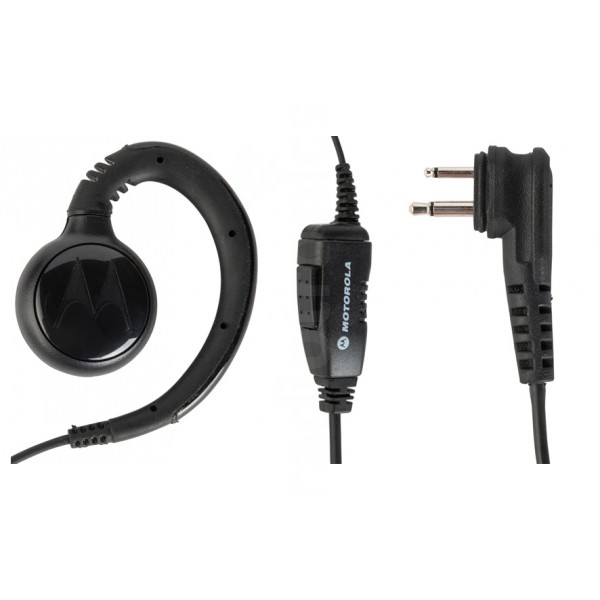
2-Pin Earpiece Socket: Motorola is very well known for the “standard 2-pin earpiece socket”. The CLP, above, has a specific earpiece socket. The DLR has the “industry standard” Motorola 2-pin accessory socket. That means you can choose genuine Motorola branded earpieces or even a selection of cost effective aftermarket earpeices. Whatever you choose, the accessory socket conforms to the 2-pin Motorola standard.
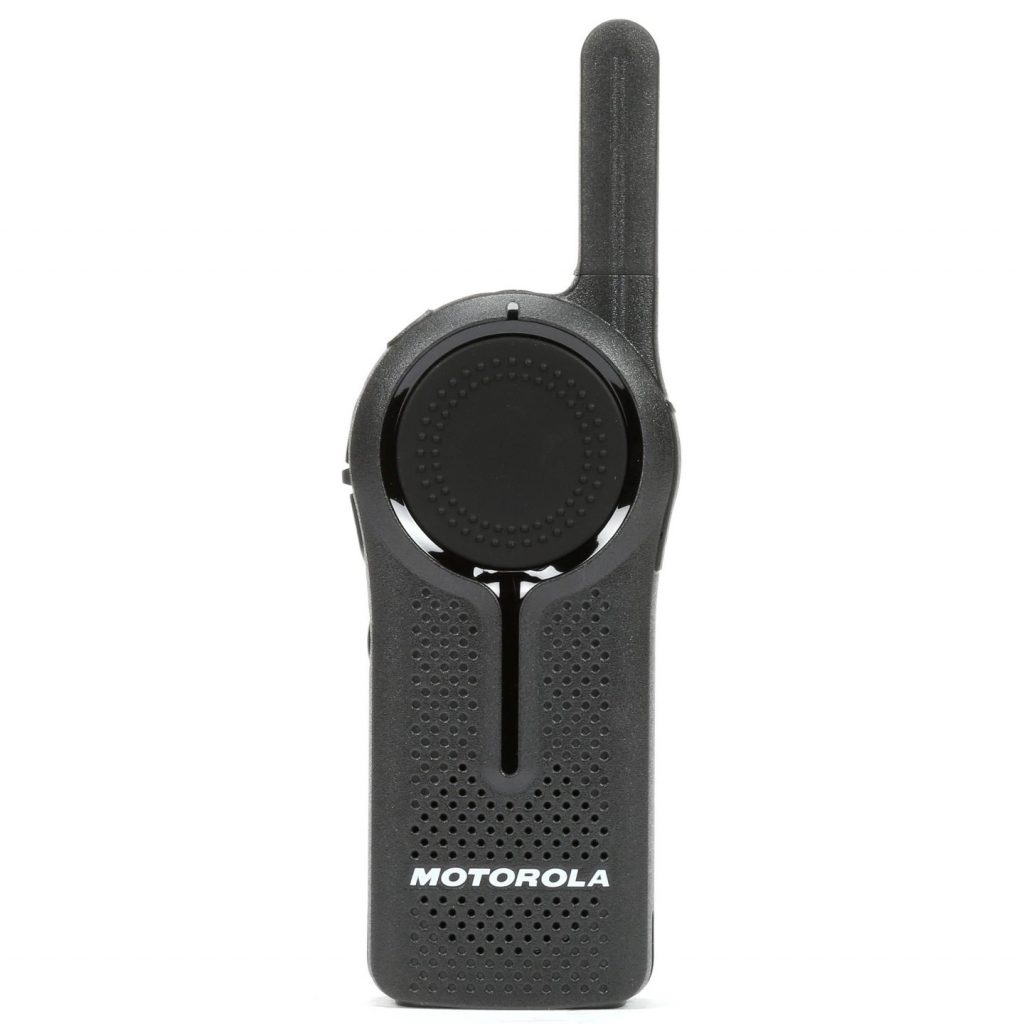
Motorola DLR

Pros

  • Licence Free! NO ACMA Licence Required
  • Digital Crystal Clear Audio Quality
  • Much Longer Range Than Analogue
  • Normal 2-Pin Accessory Connector
  • Private Reply Capable (with programming)

Cons

Only works with other DLR series radios, cannot be used with any other make or model radio.

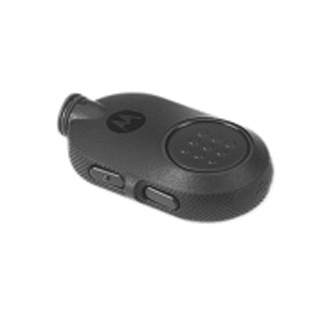
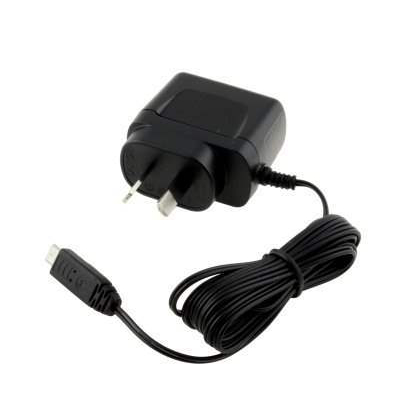
Motorola DLR Accessory Options
The bottom line?

The bottom line is that they’re both excellent two-way radios.

CLP107 / CLP107e

The Motorola CLP107e is old analogue technology, limited range and requires an expensive ACMA-issued licence. It also only works with an earpiece connected.

Recommendation: Probably better to only choose the CLP if you already have existing CLP range, you have other licensed UHF two way radios or you need to use the radio via a repeater.

DLR1060

The Motorola DLR1060 is crystal clear digital technology, extended range and does not require a licence. If you don’t have existing radios and

Receommendation: A great choice for a new fleet. Extended range, crystal clear audio and the standard Motorola 2-pin accessory connector.

Posted on Leave a comment

Motorola CLP107, CLP117 & CLP107e Programming (Part 1)

Motorola Business Radio Software
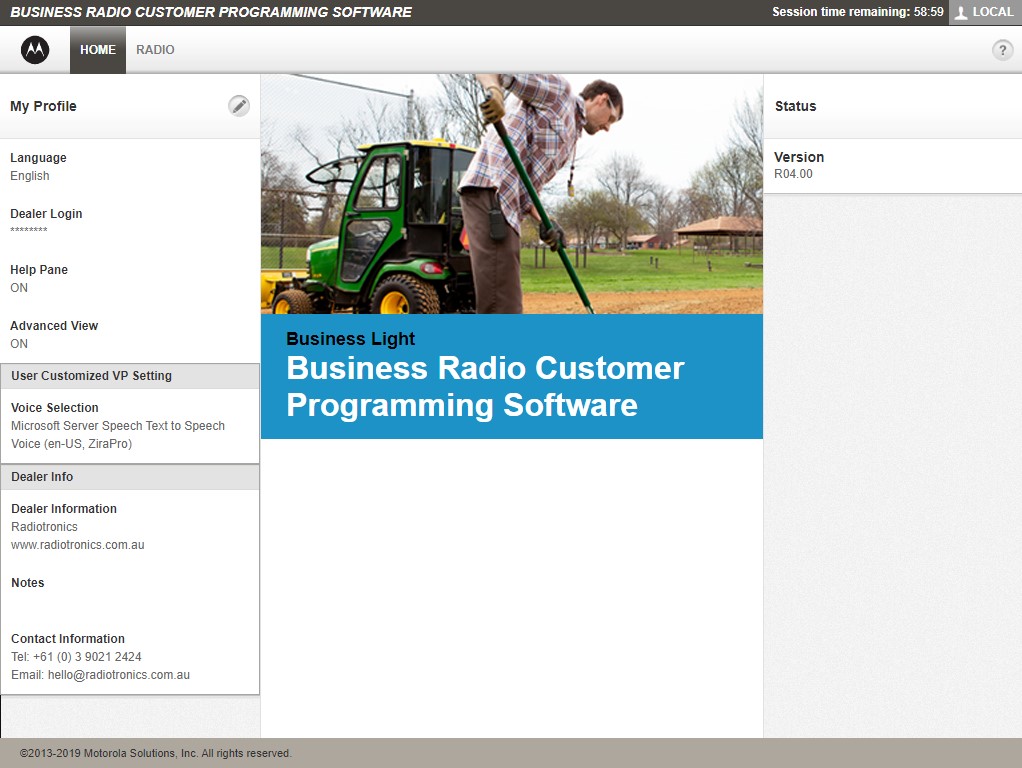
Business Radio Customer Programming Software

Things you will need…

Please read this section very carefully.

All two-way radios used in Australia & New Zealand require frequencies. These frequencies allocated to you by the ACMA as part of your licence. These frequencies are shown on your ACMA licence documentation.

If you have an existing radio that you want to copy the settings from (for example a previous set of radios), the existing radio will already have the ACMA-licensed frequencies programmed into the brain inside. In order to ontain these frequencies you will need to “read” the existing radio.

When copying form one radio to another, and they’re the exact same make and model radio, this is as easy as “Plug In Old Radio”, “Read”, “Unplug Old Radio”, “Plug In New Radio”, “Write”, “unplug new radio”. Done.

In almost all circumstances there are no glitches and hiccups. So if you follow this guide very carefully you will likely have success.

Note: Do not scan read this guide. Read it thoroughly. Then re-read it. You might have to read it 2-3 times if you’re new to programming.

Make sure you havre the following…

Note: We’re not going to cover installing the software here as it’s a standard Windows installation which most people are familiar with. But please note, it’s incredibly important that you unzip (here’s how and why) the files before installing.

Check List: Things To Do

  • MAKE SURE THE RADIO BATTERY IS CHARGED: The radio will need enough charge to read/write data. A full charge for at least an hour before hand will be fine.
  • SWITCH OFF THE RADIO: This should be done anyway – always switch of your radio when on charge. It will not only make your radio charge faster but it also helps keep the battery in good condition.
  • PLUG IN THE USB CABLE: What USB Cable? Read the “Things You Will Need…” section above.
  • CHECK DEVICE MANAGER: The cable will be installed as a COM device. Read this article here.
    • Check cable drivers are installed properly. If they are it will say “this device is working properly”.
    • Make a note of the COM port number. How? Read this article here.
  • INSTALL THE MOTOROLA CLP SOFTWARE: Install the programming software well in advance of any planned programming. Please note that the software might be ZIPPED UP. So be sure to UNZIP it (here’s how and why) before installing it.

Initially Reading Your CLP Radio

The following steps will walk you through initially reading the radio. This is important because it shows you how to make a backup of your existing programming; which you can restore if you do anything wrong or break anything.

Note: We cannot stress this enough. Do not scan read this guide. Read it thoroughly. Then re-read it. You might have to read it 2-3 times if you’re new to programming.

Note: At this stage, we presume the software is already installed. If the software has not been installed, please install it. If you do not already have it, Radiotronics offers is FREE of charge.

Free software download (Australia / NZ & Asian Pacific):

Radiotronics offers the business radio programming software free of charge. You can download it by using the link below. Please note that this software applies to Australia, New Zealand & Asian Pacific region radios only. These are models CLP107, CLP117 and CLP107e.

Note: This guide only applies to Australia, New Zealand & Asian Pacific region models. Radiotronics Auistralia cannot offer software for other regions. Australia, New Zealand & Asian Pacific region software does not work with radios from other regions. If you’re using any radio other than CLP107, CLP117 and CLP107e, we recommnd using Google to find the correct region software.

Step 1 – Open The Software

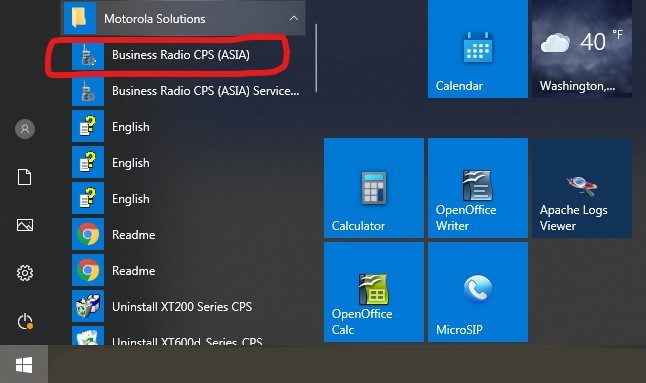
You will find the software in the Windows 10 start menu under “Motorola Solutions” > “Business Radio CPS (ASIA)” > “Business Radio CPS (ASIA)”. Click on “Business Radio CPS (ASIA)” once and wait for it to start up.

Motorola CLP Software Location

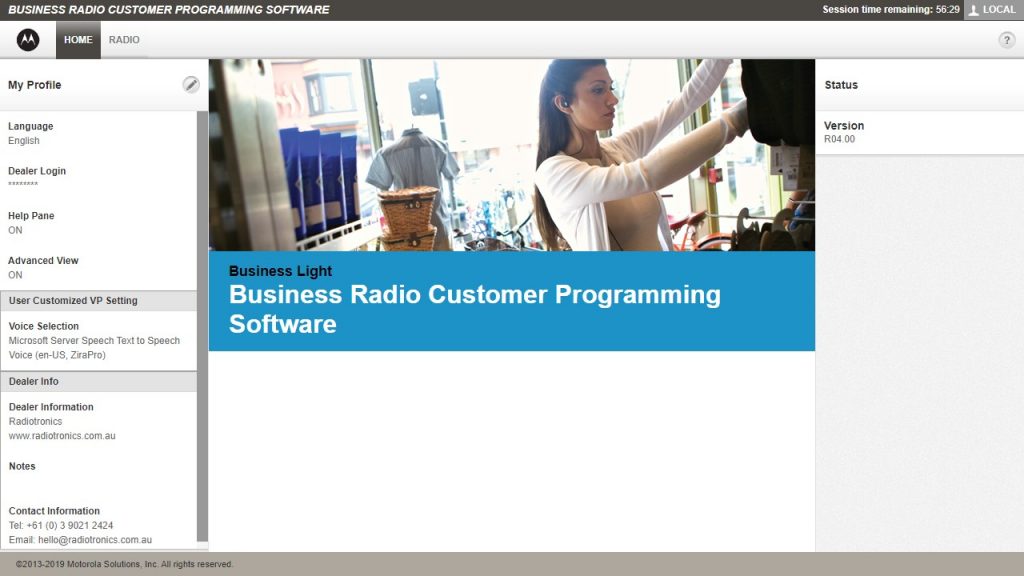
The software will open in a web browser and will look like this. Of course we have already filled in the dealer info ssection in our version so you will see Radiotronics in the dealer info on our screenshot here that will not be shown in yours.

Motorola CLP Software

Step 2 – Connect Your Radio

This step is a little tricky the first time you do it but follow this step to connect your CLP radio to your computer. Of course, this depends on whether you have the single charger or the 6-way charger. But it’s almost the same process.

Single Charger

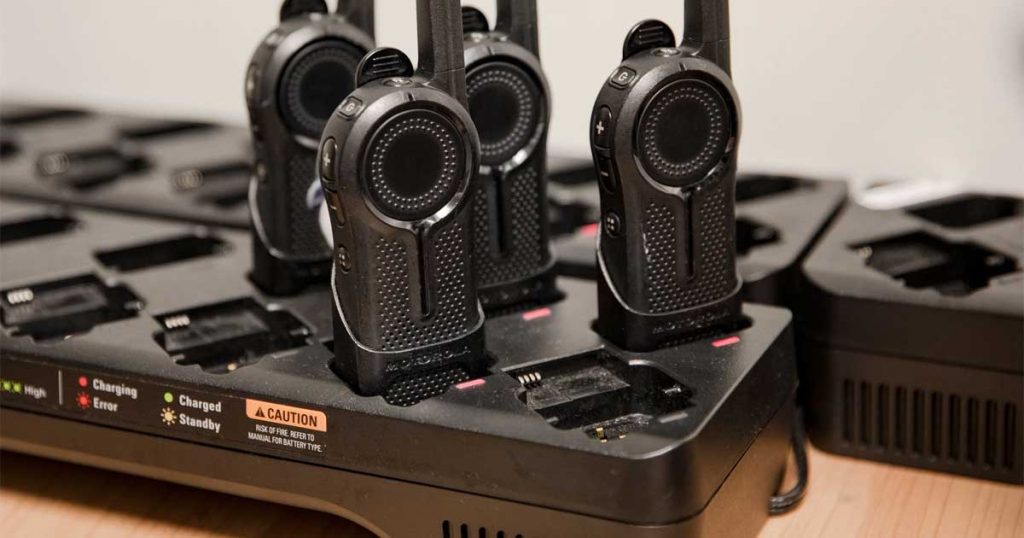
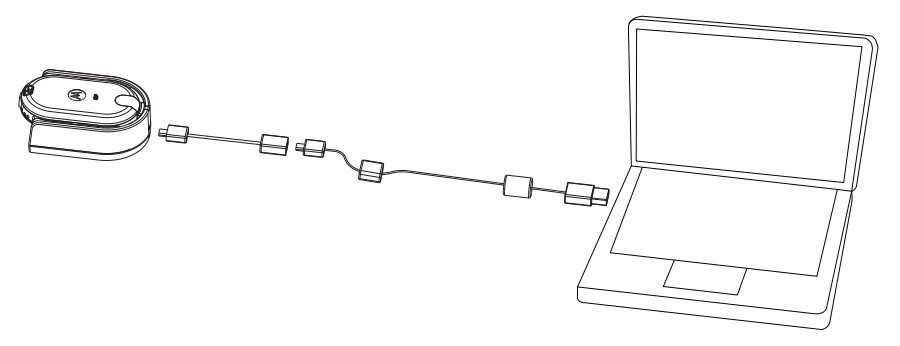
Connect the HKKN4027 cable to the PC or laptop. This makes it obvious which side connects to the radio. Next, connect the Micro-USB to Mini-USB fly lead (the smaller cable supplied). Then connect the smaller cable to the back of the CLP charger as shown below. These plugs only fit one way up. If they don’t go in easily observe the orientation. Don’t force them.

Motorola CLP Radio Programming Cable Connection
Programming Cable (With Single Charger)

6-Way Charger

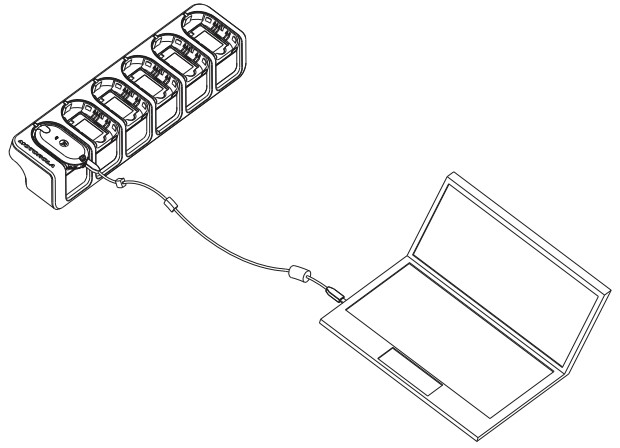
Connect the larger normal USB connector of the HKKN4027 cable to the PC or laptop. This makes it obvious which side connects to the radio. You do not need the smaller adapter cable for the 6-way charger. On the back of the 6-way charger, look at position 6 for example. There will be a little rubber flap that usually says “5V” on it. Lift this flap carefully using a small screwdriver revealing a micro-USB socket. Connect the micro-USB end of the cable to this micro-USB socket on the CLP 6-way charger shown below. These plugs only fit one way up. If they don’t go in easily observe the orientation. Don’t force them.

Motorola CLP Radio Programming Cable Connection
Programming Cable (With 6-Way Charger)

Step 3 – Read The Radio

Which radio should you read? Please read carefully.

Scenario 1 – Matching Another Radio

If you are looking to syncronise your new radio with an existing radio from a fleet of radios you alreday have. An example is that you’re a security guard who’s purchased your own radio and you need it to work with the radios at work…

In this scenario the radio you need to read here is the existing radio. Do not read your new radio here. By reading the existing radio, the programming will be opened in the software.

Scenario 2 – Brand New Radios (No Previous Radios)

In this scenario you have a number of brand new radios and no existing or old radios you need to put on a particular frequency.

Let’s assume you’ve also purchased an ACMA-issued licence. If you need an ACMA-issued licence, contact us.

In this scenario you need to read any one of your new radios. By reading this radio it will open the correct “profile” ready for adding your new ACMA-issued frequencies.

Reading The Radio

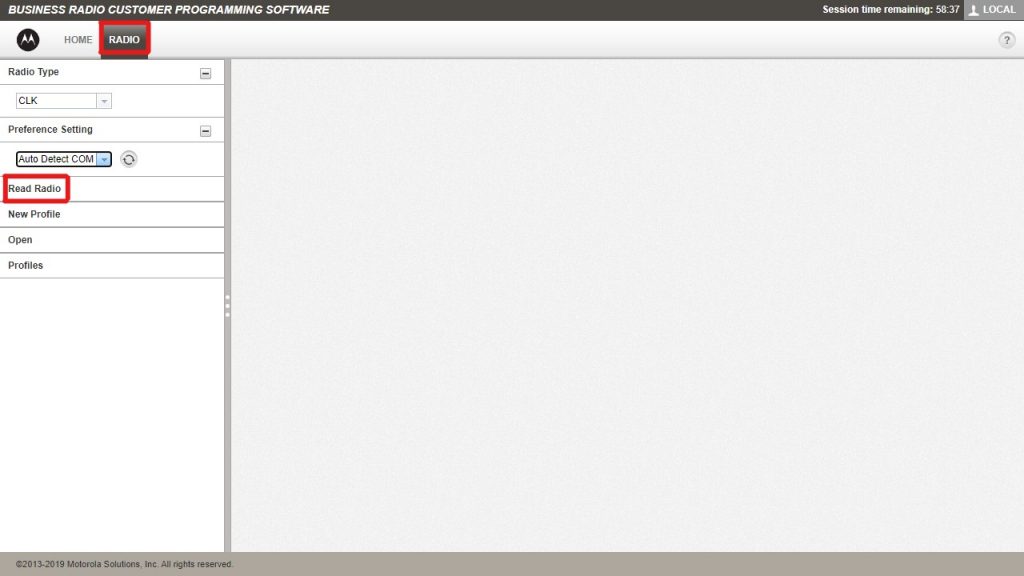
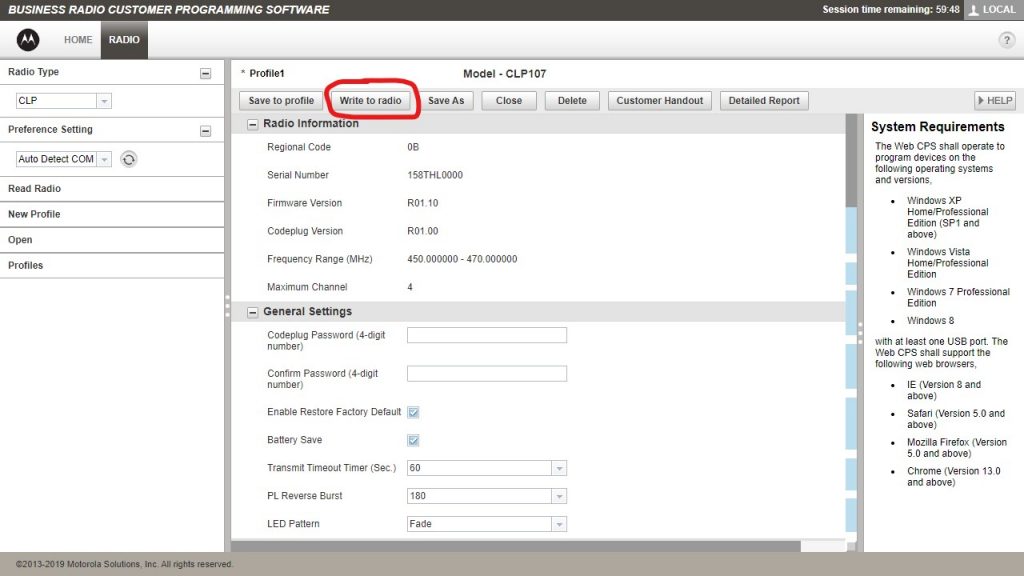
Along the top, click the “RADIO” tab. This will take you to the radio information screen. Next, click on “Read Radio”.

Troubleshooting: If you get an error at this stage check the following:
  1. You are uisng an HKKN4027 or HKKN4025 cable. Normal USB cables will not work.
  2. The HKKN4027 programming cable is connected to the back of the charger and plugged in correctly. Don’t force it.
  3. The radio is switched ON and fully charged.
  4. The cable has properly registered in device manager as a COM port. How? Read this article here.
Motorola CLP Software

Inspecting The Radio Information

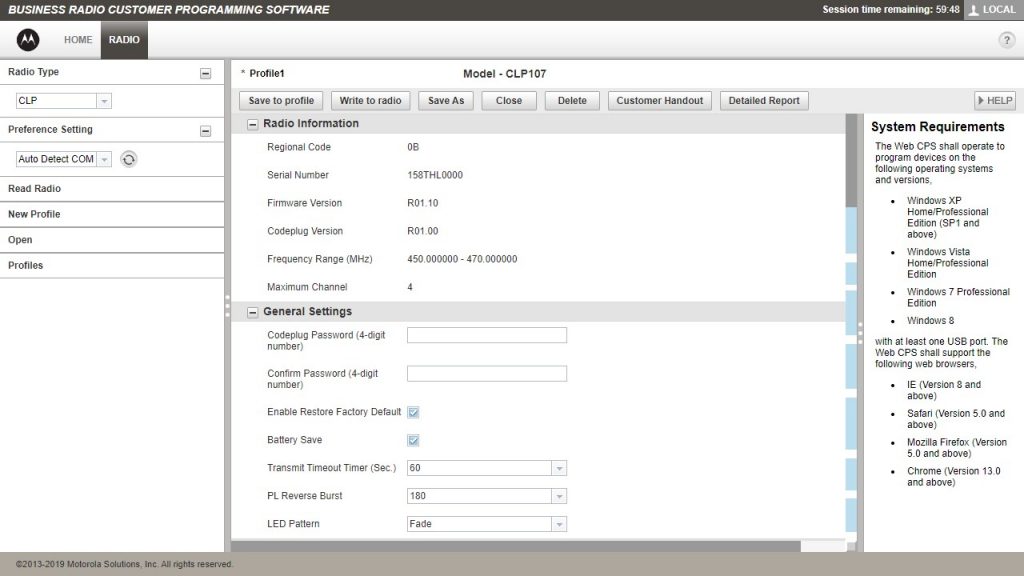
As soon as the radio is completely read into the software the radio information screen will appear. At this stage, it’s good practice to save a copy of this information by clicking “Save As”; but it’s optional.

Motorola CLP Software

Optional: Write To A New Radio

If you were programming your CLP radio just to make it work with an existing radio: You would simply plug in your new radio, via the charger, now, make sure it’s switched on, and click “Write to radio” in the software. The radio will reboot itself and it will work woith your existing radios. Repeat this step with all new radios you wanted to syncronise with old radios. That is the end of your programming journey.

If you are programming a new radio fleet from scratch, skip this step.

Motorola CLP Software

Part 2 – Frequencies & Channels

Next, in Part 2 we exmplore how to customuse channels.

Step 4 – Activating Dealer Mode

Motorola’s CLP radois can broadcast anywhere between 450 MHz and 470 MHz. That means, if programmed incorrectly, they have the potential to cause interference to other radio users, or even be used illegally.

Ignorance is no excuse. Transmitting illegally could land you with a very large fine and prison time for serious repeat offenders.

For this reason, the Motorola CLP programming software does not allow the frequency table to be edited by default so that the user cannot accidently set the radios to broadcast on frequencies they do not have permission to use.

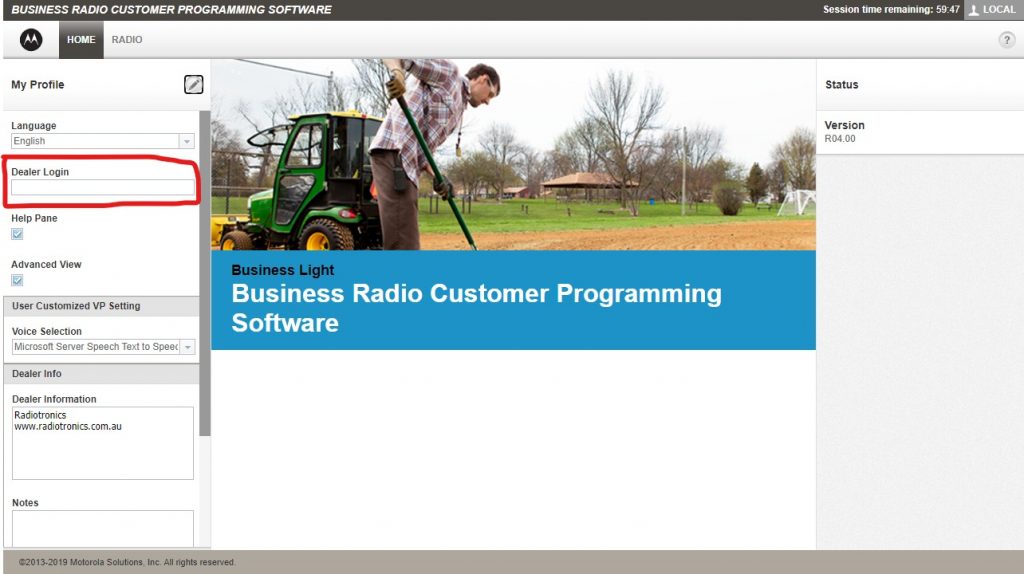
Changing the frequencies requries the software to have “dealer mode” activated. This is done by entering a password in the “Dealer Login” section on the “Home” tab.

Strict Critera

In order for Radiotronics to provide you with the “Dealer Login” password to enable dealer mode we have strict critera we are required to work to. You must meet one of the following criteria and provide the evidence required.

First, place your order for the Dealer Password EID Licence Key here. When you recveive your order confirmation, send us the evidence from the table shown below.

Radiotronics will not provide the dealer-mode activation password without the evidence.

CriteraEvidence Required
An authorised Motorola Solutions dealer.Motorola Solutions dealer agreement.
A business two-way radio ACMA-issued licence holder.A PDF copy of the ACMA-issued licence.
A licensed radio radio amaterur.A copy of your radio-HAM licence.
Demonstrate RF competence.A photocopy of your academic qualifications.

In order to request the dealer password, place your order for the Dealer Password EID Licence Key here. When you recveive your order confirmation, send us the evidence from the table shown below.

Entering Dealer Mode

Click the “HOME” tab on the software. On the left side there is a section called “My Profile” and to them right of that there is a diagonal pencil icon which is an edit button. Click this pencil and the profile section will become editable.

Motorola CLP Software Dealer Login

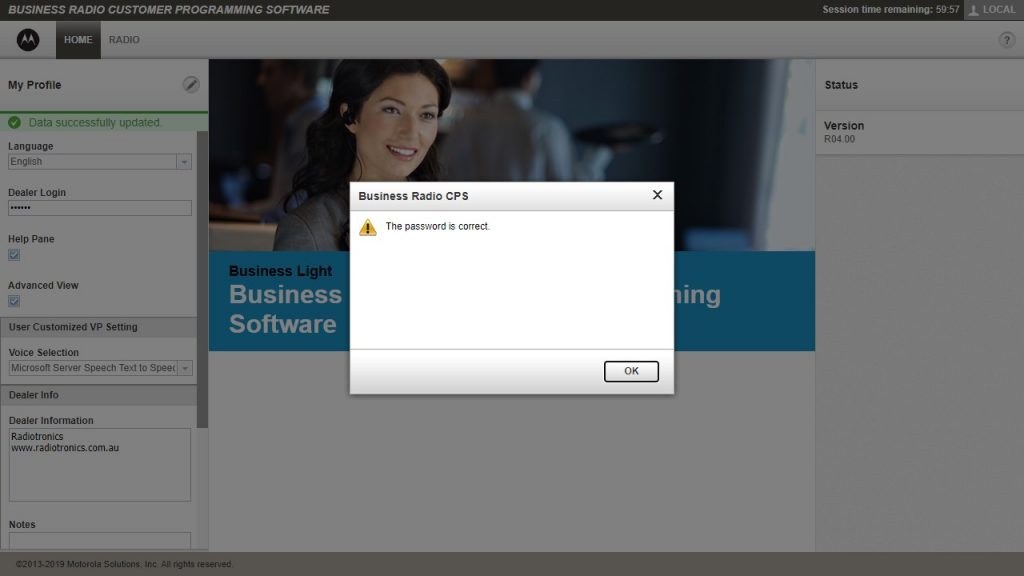
Enter the dealer password into the “Dealer Login” box and click the diagnoal pencil again. If it was correct, the password will be accepted. There will be a green message saying “Data successfully updated” as ell as a dialogue box with the message “The password is correct”. Click OK. Then click the diagonal pencil again to save it. Now you’re ready to move on.

Motorola CLP Software Dealer Login Success

Step 5 – Adding Your Frequencies.

Go back to the “RADIO” tab and the radio information should still be open. If this has disappeared, read the radio again as shown in Step 3 then immediately come back here to Step 5.

Remove Any Existing Channels & Frequencies

When the CLP107, CLP117 and CLP107e are delivered from Motorola Solutions they might have between 1 and 99 frequencies already programmed into them. These are test frequencies. They need to be removed.

Note: If you transmit on any of these test frequencies you are breaking the law.

Remove All Channels

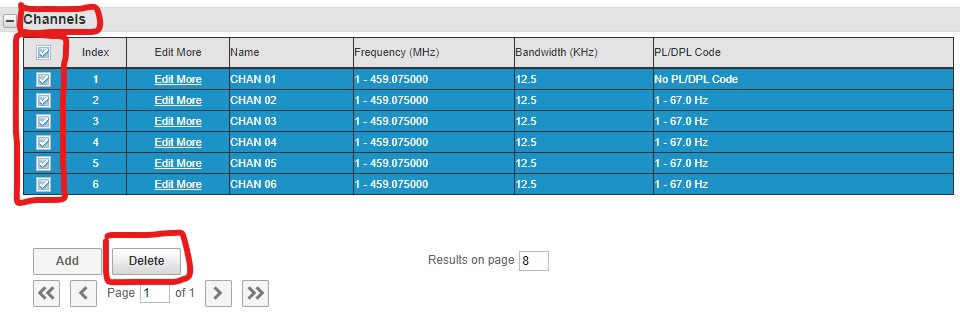
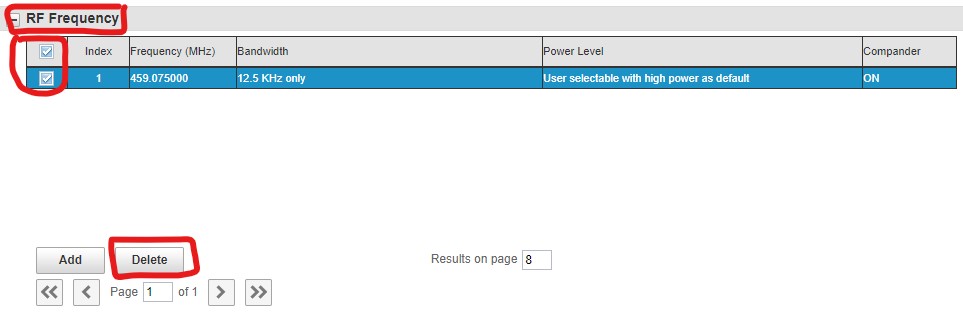
In a Motorola CLP radio, channels are not frequencies. A channel references a frequency. Before you can remove the test frequencies, you need to remove the channels that refrence them. It’s easier to just delete all chanels. Scroll down to the “Channels” section. Check the boxes on the left and click the “Delete” button. Keep doing this until all channels are removed.

Motorola CLP Software Delete Channels

Remove All Frequencies

Delete all by checking the box on the left as you did with channels.

Add Frequency

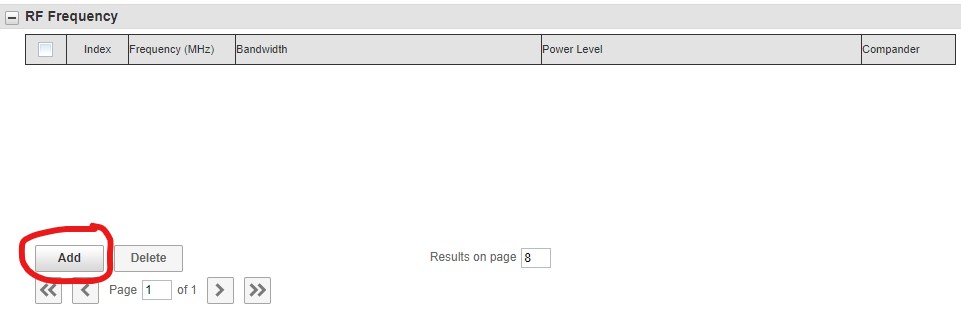
Now is the time to dig out that ACMA-issued licence and get the frequency. Click the “Add” button.

Motorola CLP Software

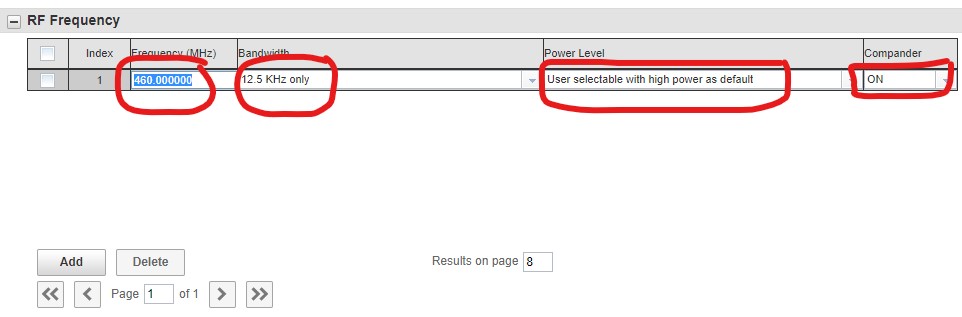
A row will be added as shown below. Type the frequency into the frequency box, select the correct bandwidth as shown on your ACMA licence.

You can leave “User selectable with high power as default” for the power setting. This is because the CLP cannot transmit above 1W so even high power is pretty low power.

The compander is a compressor/expander that can help with removing the scratchy radio sound. Compander can be set to ON if you’re only using other Motorola CLP radios. However, if you plan to use your CLP radio other make and mode, radios, it’s recommended to switch Compander OFF.

Continue to add more frequencies if you have more than one.

If you have been given a repeater duplex frequency pair, be sure to enter both frequencies here.

Motorola CLP Software

Add Channel

As described above, channels are not frequencies. A channel references a frequency (or two in the instance of a repeater). You will need to add at least one channel to use your CLP radio in order to use it.

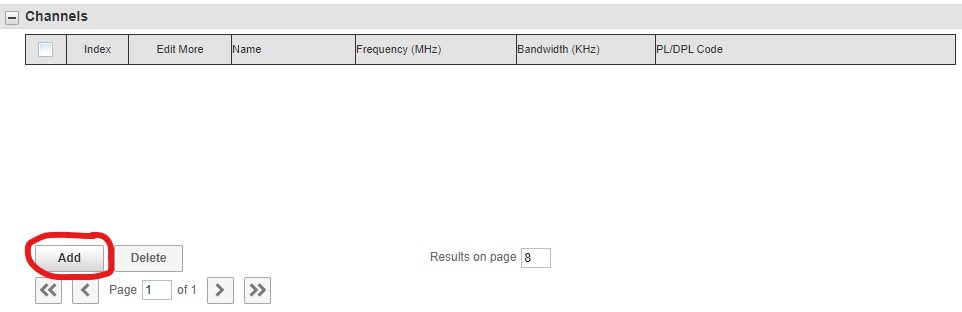
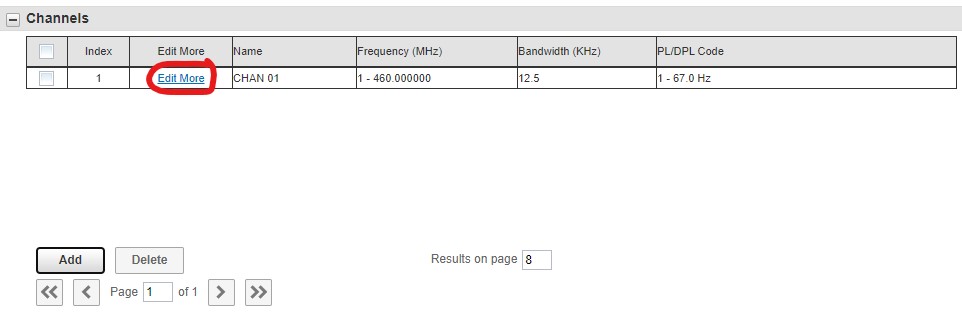
In the “Channels” section, press “Add”.

Motorola CLP Software Add Channel

Now click “Edit More”. This will open a dialogue box/more info page.

Motorola CLP Software Add Channel

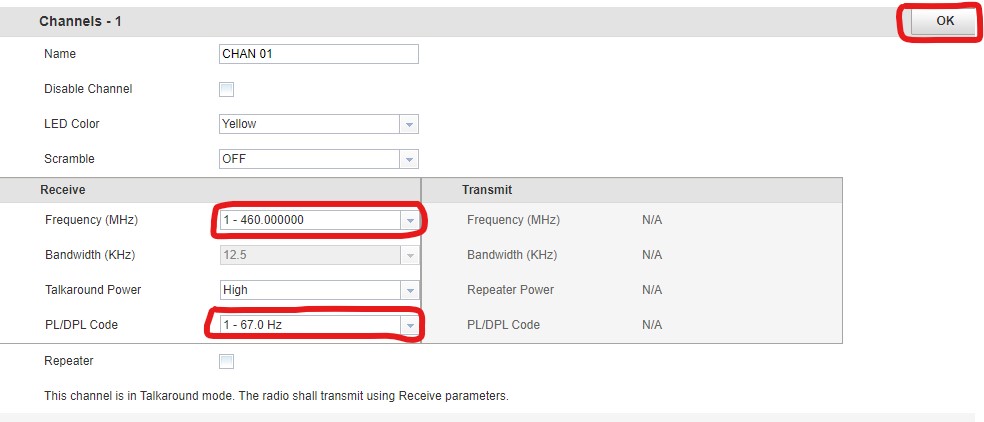
Simplex (Non-Repeater) Channel

Select the correct frequency from the list.

PL/DPL is what Motorola Solutions called CTCSS/DCS. If a CTCSS or DCS is shown on your licence, you should use the CTCSS specifically given to you. If not, you can select any CTCSS/DSC code.

This is a single channel complete. Press OK.

Tip: You can add as many channels as your model CLP allows. Then give them separate CTCSS (PL) or DCS (DPL) codes. As long as they’re not used at the same time, tehre will be no collision.

Motorola CLP Software Add Channel

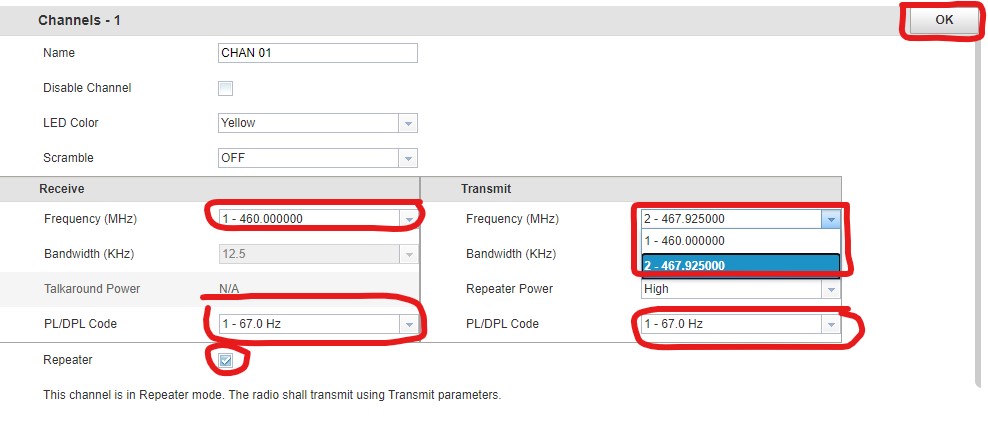
Repeater Channel

If ACMA has granted you a duplex channel and you’re using a repeater, you can activate this by checking the “Repeater” box below. This will then enable you to select separate recieve and transmit frequencies, presuming you added 2 frequencies above.

PL/DPL is what Motorola Solutions called CTCSS/DCS. If a CTCSS or DCS is shown on your licence, you should use the CTCSS specifically given to you. If not, you can select any CTCSS/DSC code.

This is a repeater channel complete. Press OK.

Tip: Remember that this being a portable radio means your repeater’s recieve frequency should be your transmit frequency here and vice-versa.

Motorola CLP Software Add Repeater Channel

Part 3 – Customising Features

Next, in Part 3 we explore how to customise features.

Part 3 will be available very soon.

Posted on Leave a comment

In Depth: Motorola SL4010e

Motorola SL4010e (Twitter)

Motorola SL4010e

…in depth.

Motorola SL4010e

Motorola SL4010e is a compact digital two-way radio that’s part of the Motorola MOTOTRBO range of two-way radios and boasts all of the features available including Bluetooth connectivity , text messaging, man down, lone worker, vibrate alert and WiFi.

Not only that, SL4010e works on all MOTOTBO systems including IP Site Connect, Capacity Plus and Capacity Max.

Want A Quote?

Email hello@radiotronics.com.au or call us on (03) 9021 2424 now!

Motorola SL4010e History

In the beginning there were two SL4000 models, SL4000 and SL4010. The SL4000 and SL4010 are the exact same radio, except the SL4010 had an integrated option board. In 2017, SL4000 and SL4010 were replaced by SL4000e and SL4010e, respectively. In 2018, Motorola Solutions announced the SL4000e would be cancelled, leaving only the SL4010e available now.

Charger Options

The Motorola SL4010e, as you might expect, has a few charger options. Most notaably, SL4010e is supplied with a plug-in charger – just like you would get with your mobile phone – and that’s free of charge. However, the part code has changed! The old version was part code PMPN4007 (now cancelled) and the new part code is PS000042A14.


Single Unit Desk Charger

Motorola SL4010e SL4000e Single Desk Charger

When Motorola Solutions designed the Motorola SL4010e , they really thought about where and how this radio would be used, and the single unit desk charger really demonstrates that.

This is called the “desk charger”. Here at Radiotronics, we’re amazed that some dealers don’t even realise it exists.


Multi-Unit 6-Way Charger

Motorola SL4010e 6-Way Charger

A welcome addition to any growing fleet of radios is a 6-way charger. The SL400e and SL4010e have a great 6-way charger that can either charge 6x radios, 6 batteries, or any combination.

Note: The SL4000e and SL4010e do not fit in the older SL4000/SL4010 PMLN5892A 6-way charger. The current 6-way charger is actually quite a new item. Confusingly the new and old version of this charger look idnetical. But there’s one subtle difference. Since the SL4000 and SL4010 radios had a thinner battery (BT90 / HKNN4013) and used a PMLN6001 slim battery cover, the SL4000 and SL4010 were thinner than the newer E versions and the newer E versions do not fit into the older PMLN5892A charger.

Battery Options

When you purchase your Motorola SL4010e, you will recieve a PMLN4468 battery (also known as BT100) along with a PMLN6745 battery door (also known as back panel). However, there are actually 3 batteries available for the SL4010e.

Battery Door Reference

Each battery requires a different battery door (or back panel).

Order CodeModelDoor Required
HKNN4014BT60PMLN6000
HKNN4013BT90PMLN6001
PMNN4468BT100PMLN6745

Have your say…

Do you have a question or something to say about the SL4010e? Leave a comment below…

Posted on Leave a comment

Introducing the Motorola DLR1060 12-Way Charger

Motorola PMLN8035 DLR1060 12-Way Charger

For 90 years, Motorola Solutions has been the biggest innovator in two-way radios and was the first to introduce multi-way chargers. Now they’ve broken the mould and created the world’s first 12-way charger designed specifically for buisness radios.

The all new Motorola PMLN8035 (also known as PMLN8035A) is the 12-way charger for the all-new Motorola DLR1060 digital two way radio.

Motorola DLR1060 12-Way Charger

Available Now!

The PMLN8035 (also known as PMLN8035A) is available now from Radiotronics.

Posted on Leave a comment

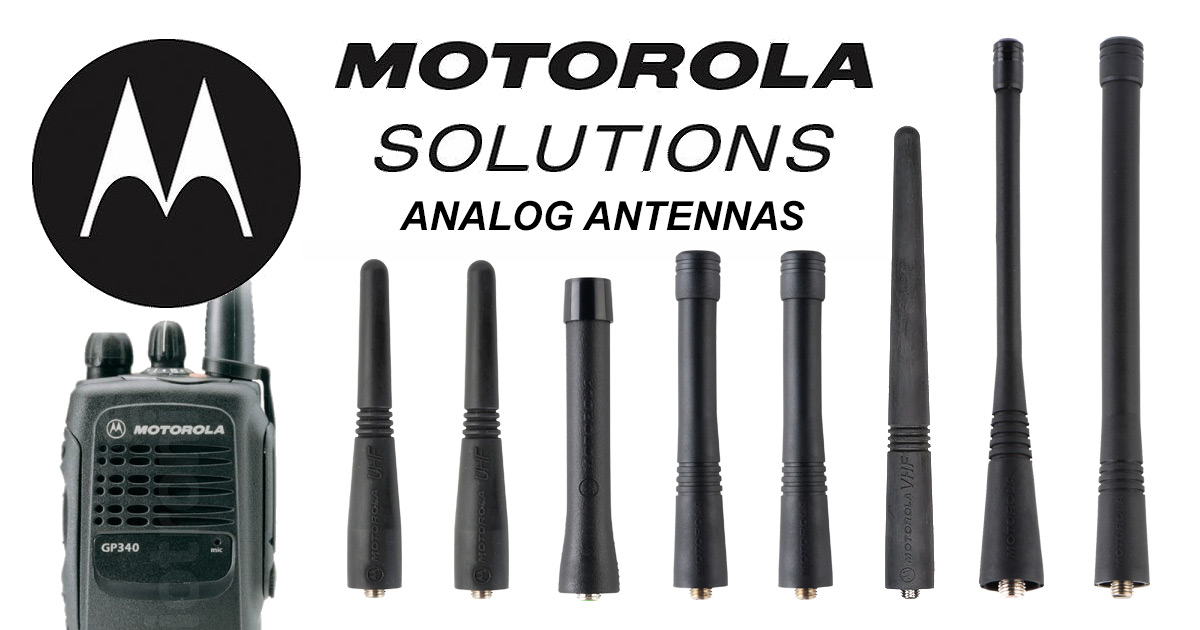
Motorola Analogue Two Way Radio Antenna Guide

Motorola Analogue Two-way Radio Antennas

Almost all analogue Motorola two way radios use the same antenna connectors. But it can be a tricky task working out which antenna you need. To make things easier, we’ve put together this guide to Motorola analogue two way radio antennas.

Compatible Radios

  • GP3188, GP3688, EP450
  • DEP450
  • CP476
  • GP328 Plus, GP338 Plus
  • GP328, GP338
Part Code Band Range Shape Length Notes
Long Antennas
HAD9338 VHF 136-162 MHz Helical 15.5cm (6.1″)
NAD6502 146-174 MHz 15.5cm (6.1″)
PMAD4014 136-155 MHz Conal 14cm (5.5″)
PMAD4023 150-161 MHz 14cm (5.5″)
PMAD4015 155-174 MHz 14cm (5.5″)
NAE6483 UHF 403-520 MHz Helical 17cm (6.5″) Replaced by PMAE4016
PMAE4016 403-520 MHz 17cm (6.5″)
Short Antennas
HAD9742 VHF 146-162 MHz Helical 9cm (3.5″)
HAD9743 162-174 MHz 9cm (3.5″)
PMAD4012 136-155 MHz Conal 9cm (3.5″)
PMAD4025 150-161 MHz 9cm (3.5″)
PMAD4013 155-174 MHz 9cm (3.5″)
NAE6522 UHF 438-470 MHz Helical 8cm (3.1″) Replaced by PMAE4003
PMAE4002 403-433 MHz Conal 9cm (3.5″)
PMAE4003 430-470 MHz 9cm (3.5″)
PMAE4006 465-495 MHz 9cm (3.5″)
Posted on Leave a comment

Introducing the Motorola DLR1060

Motorola PMLN8035 DLR1060 12-Way Charger

Motorola Solutions has announced that the Motorola DLR1060 is to be launched in Australia during the summer of 2020 and should be available from all major Australian Motorola dealers by Q3/2020.

Motorola PMLN8035 DLR1060 12-Way Charger

Motorola DLR1060 is a digital two way radio that utilises Frequency Hopping Spread Spectrum (FHSS) technology meaning never again will inteference or collisions between radio users be a problem. Motorola Solutions is the first major manufacturer of two-way radios to bring FHSS technology in two-way radios to Australia.

DLR1060 is also lightweight at only 119g and that’s with the battery and belt holster.

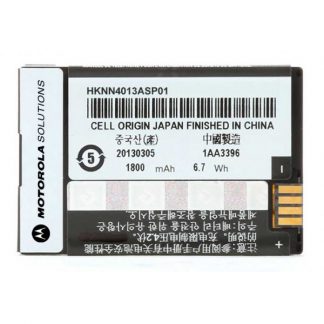
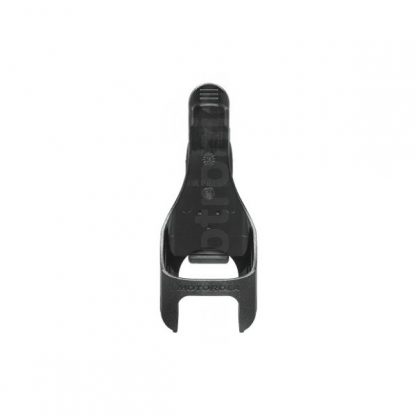
The standard package is due to include a HKNN4013 battery, HKLN4615 belt holster and a quick start guide that you can also download from our website here.

Available Now!

You can now buy the Motorola DLR1060 from Radiotronics right now!

Case Study 1 – Fanatics

Case Study 2 – Canadian Tire

Posted on Leave a comment

Motorola Solutions Two Way Radio Heavy Duty Noise Cancelling Headset Guide

Motorola Solutions has release a new series of heavy duty noise attenuating headsets that offer a military-type ear seal and a comfortable behind the head headband and boom microphone.

This heavy duty headset provides excellent noise attenuation of up to 24dB and the ear cups, where the PTT is located, provide a protective seal to shield the user’s ears from harmful noise. Incoming radio transmissions can be heard in both ears and talk-back can be done via the heavy duty flexible boom microphone, which is more robust and delivers better performance than lightweight headsets.

As well as noise cancelling attenuation on the headset cups, these headsets also have a noise cancelling boom microphone that is user replaceable boom microphone. The microphone can attach to either left or right ear cup. The PTT button is on the side of one of the ear cups.

TypeStandardIntrinsically SafeRadio Models
Behind The HeadPMLN6854DP1400
Behind The HeadPMLN6760PMLN6763DP2400e & DP2600e
DP3441e & DP3661e
MTP3000 TETRA
Behind The HeadPMLN6852PMLN6853DP4400e & DP4401e
DP4601e
DP4800e & DP4801e
Over The HeadPMLN7464PMLN7465DP4400e & DP4401e
DP4601e
DP4800e & DP4801e
MTP6000
APX Series
Over The Head
(Inline PTT)
PMLN5731
Posted on Leave a comment

The Ultimate IMPRES 6-Way Charger Guide

The world of Motorola Solutions IMPRES chargers can be a complex matter. Here at Radiotronics, we have taken the time to simplify this.

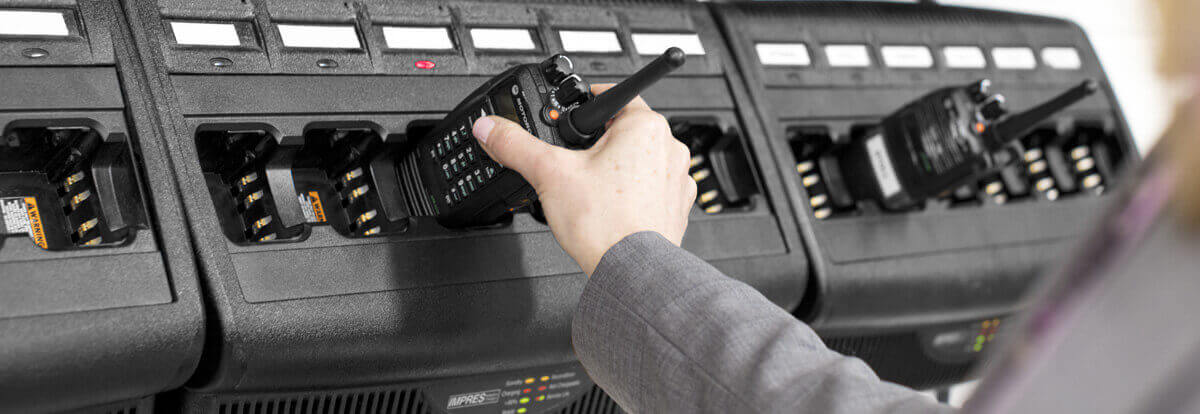
Motorola IMPRES Chargers On Wall

Motorola MOTOTRBO & APX1/2/3/4 Charger & Bateries

The following chargers are for the Motorola DP2400, DP2600, DP4400/e, DP4800e, DP3400, DP3600, DP4X01-Ex and MTP8000-Ex. This charger is also for APX1000, APX2000, APX3000 and APX4000 series two-wy radios.

Note: Not for DP3441/e or DP3661e. These radios use the GP-Professional charger further down this page.

WPLN4121 series adapter: There is also a NNTN8170 adapater that allows APX1/2/3/4 and MOTOTRBO series batteries to be chargd using the WPLN4121 series chargers.

MOTOTRBO™ (DP3400, DP3401, DP3600, DP3601)

MOTOTRBO™ (DP4000 Series & DP4000e Series)

XP4000-Ex Series & MTP8000-Ex Series)

APX 4000 Series Batteries

Chargers

Order CodeNon-DisplayDisplayPower Cord
Base OnlyWPLN4211WPLN4218None
USA / CanadaWPLN4212WPLN42193087791G01
EuropeWPLN4213WPLN42203087791G04
United KingdomWPLN4214WPLN42213087791G07
AustraliaWPLN4215WPLN42223087791G10

GP-Professional Series IMPRES Chargers

These 6-way chargers are for two series’ of radios. Surprisingly the DP3441e and DP3661e do not fit in the DP-series IMPRES charger. Both GP328 series and DP3441e/DP3661e fit this charger.

Motorola GP328 & GP338 IMPRES Batteries

  • HNN4003 2350 mAh Li-Ion
  • HNN4001 1800 mAh NiMH
  • HNN4002 1700 mAh NiMH Intrinsically Safe

Non-Display Chargers

RegionNon-DisplayDisplayPower Cord
Base OnlyWPLN4197WPLN4198None
U.S.A.WPLN4187WPLN41923087791G01
EuropeWPLN4189WPLN41943087791G04
United KingdomWPLN4188WPLN41933087791G07
Australia/New ZealandWPLN4190WPLN41953087791G10
ArgentinaWPLN4191WPLN41963087791G13
U.S.A. (Alternate)WPLN4205WPLN42043087791G01
KoreaWPLN4146WPLN41453087791G16

APX6/7/8 Series IMPRES Multi-Chargers

There are two series’ of the APX radios. APX1/2/3/4 use the MOTOTRBO charger above. Only the APX6/7/8 use this charger.

  • PMNN4403 2150 mAh Li-Ion slim IP67 – Submersible
  • NNTN8092 2300 mAh Li-Ion Rugged – Submersible, Intrinsically Safe
  • NNTN7038 2900 mAh Li-Ion IP67 – Submersible
  • NNTN7034 4200 mAh Li-Ion high capacity Rugged – Submersible
  • NNTN7033 4100 mAh Li-Ion high capacity Rugged – Submersible Rated to -30 C, Intrinsically Safe
  • NNTN7035 2000 mAh NiMH Rugged – Submersible, Intrinsically Safe
RegionNon-DisplayDisplayPower Cord
Base OnlyNNTN7064NNTN7072None
U.S.A.NNTN7065NNTN70733087791G01
EuroNNTN7066NNTN70863087791G04
U.K.NNTN7067NNTN70743087791G07
Australia/NZNNTN7068NNTN70633087791G10

Astro Digital XTS2500, XTS 1500, MT 1500™, PR1500 IMPRES Multi-Chargers & Batteries

These chargers support all XTS series two-way radios. However, it’s important to nore that there are different battery-radio fit profiles between the XTS1500/XTS2500 and XTS3000/XTS3500/XTS5000.

XTS2500, XTS 1500, MT 1500™, PR1500 Batteries:

  • NNTN7554 2050 mAh Li-Ion slim IP67 – Submersible
  • NNTN7335 2700 mAh Li-Ion IP67 – Submersible (Cancelled, see PMNN4495)
  • PMNN4495 3900mAh Li-ion
  • NTN9858 2100 mAh NiMH
  • NTN9857 2000 mAh NiMH Intrinsically Safe
  • NNTN6263 2000 mAH NiMH IP67 – Submersible, Intrinsically Safe

XTS® 5000, XTS 3500, XTS 3000 Batteries:

  • NTN9862 2750 mAh Li-Ion Slim
  • NNTN6034 4150 mAh Li-Ion high capacity, Rated to -30 C
  • NNTN7453 3950 mAh Li-Ion, high capacity IP57 – Submersible, Intrinsically Safe
  • PMNN4093 3000 mAh NiMH high capacity
  • NNTN4435 1800 mAh NiMH
  • NNTN4436 1700 mAh NiMH Intrinsically Safe
  • NNTN4437 1700 mAh NiMH IP57 – Submersible, Intrinsically Safe

Chargers

RegionNon-DisplayDisplayPower Cord
Base OnlyWPLN4121WPLN4127None
U.S.A.WPLN4108WPLN41303087791G01
EuroWPLN4109WPLN41313087791G04
U.K.WPLN4110WPLN41323087791G07
Australia/NZWPLN4118WPLN41333087791G10
Posted on Leave a comment

Motorola GP328 & GP338 Are Discontinued & The Motorola DP4000 Series Is The Replacement

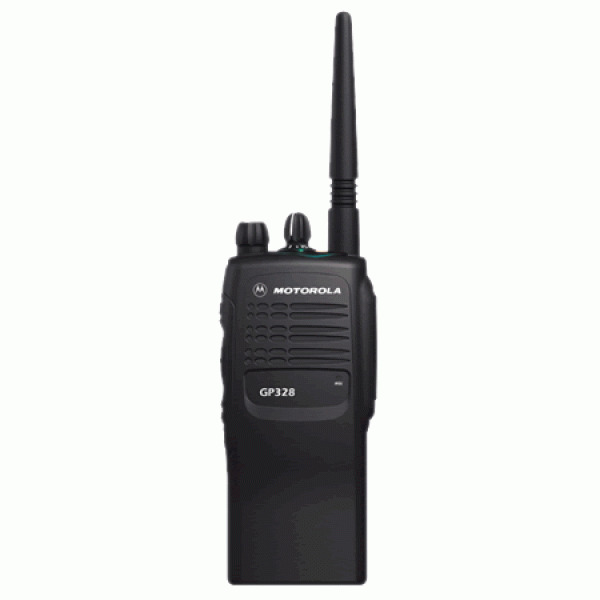
Motorola GP328

Motorola has announced that the very popular Motorola GP328 and Motorola GP338 two way radios are to be discontinued with the replacement being the Motorola DP4000 series. However, we recommend the Motorola DEP450.

Suggested alternative:

Motorola DEP450

Motorola Solutions says:

As the migration to MOTOTRBO accelerates, Motorola will be cancelling the following list of models. There will be a transition period after the Last Order Date, during which we will continue to sell cancelled models until stock depletion. This cancellation notice does not affect accessories which we will continue to supply until further notice.

Motorola Solutions, 2014

The replacement models are:

  • Motoorla GP328 -> DP4400E
  • Motorola GP338 = DP4800E

Motorola GP328 and Motorola GP338 have been seen as an industry standard by radio users for many years. However, Motorola Solutions are accelerating their migration to the MOTOTRBO range of radios. Motorola is marketing the Motorola DP4000 series as the official replacement for the GP340. However, we recommend the Motorola DEP450.

If you want to keep your GP328 radios going, Radiotronics Group has started a Facebook group to hopefully support owners of the now discontinued Motorola GP328 & GP338 series radios. Please join here: https://www.facebook.com/groups/304084137284525/

GP340 / DP4400 Replacement Reference Table

GP3x8 ModelReplacementAlternative
GP328DP4400eDEP450
GP338DP4800eDP2600e

Motorola Solutions has said that the last order date for the Motorola GP328 Series is 16th February 2015. However, all orders must be received and confirmed before this date.

Motorola Solutions has been keen to make sure that clients are aware that parts will remain available for the GP328 series for at least 5 years following the product cancellation.

Community Support Available: We have started a Facebook group to hopefully support owners of the now discontinued Motorola GP328 series radios: https://www.facebook.com/groups/304084137284525/

Posted on Leave a comment

Motorola RIB Box & Cable Guide

Almoast all analogue Motrola two-way radios utilise the legnedary Motorola RIB box that can be used in conjunction with a RLN4460 test box or stand-alone.

However you intend to use the Motorola ROB box, one thing’s for sure, it’s an incredibly complex subject working out which cable you need for both programming and testing and which for just proghramming (sometime’s that’s the same cable).

This article is intended to guide you through the convolution and simplify this to ensure you find the cable you need.

Note: This article is intended for Australia and New Zealand users only.

Note2: This guide is about the classic RLN4008_ RIB box. RLN1015 SmartRIB is not covered here.

You can also download: Motorola RIB Box manual and read a guide on the RIB box.

RIB Box & Accessories

Order CodeDescriptionNotes
RLN4008The RIB Radio Interface Box itself.Requires one of the below cables.
3080369B729 Pin PC to RIB Cable
(IBM AT or Compatible)
Most popular as most PCs (used to) have a 9-pin D-sub serial RS-232 connector.
3080369B7125 Pin PC to RIB Cable
(IBM XT or Compatible)
Very unpopular. It’s rare to find a 25-pin serial connector on a PC in Australia.
EPN4040
EPN4041
EPN4042
9V RIB Power Supply110v
110v
230v UK & EU Only.
RLN4460Test BoxRequires “Programming & Test” Cable.

Programming / Test Cables

Order CodeCompatible RadiosTypeNotes
RKN4083GM3188, GM3688, GM CB Mobile, GM328, GM338, GM CBPROProgramming & TestAlso known as AARKN4083
HLN9742 required to update firmware.
Alternate: RKN4075+RKN4081 can also be used to rapidly update firmware.
GTF374GM3188, GM3688, GM CB Mobile, GM328, GM338, GM CBPROProgrammingFront microphone port only.
RKN4083GM3188, GM3688, GM CB Mobile, GM328, GM338, GM CBPROProgrammingRear port only.
RKN4074GP328, GP338Programming & TestHLN9742 required to update firmware.
Alternate: RKN4075+HLN9742 can also be used to rapidly update firmware.
PMKN4001AGP328, GP338Cloning Only
PMKN4004EP450, CP140, CP160, CP180, PM400Programming & TestCan also be used to test the accessory connector on DEP450, but not for programming.
RLN5583 required to update firmware.
JMKN4123GP328 Plus, GP338 PlusProgramming & TestHLN9742 required to update firmware.
PMKN4010DM4000 SeriesProgrammingNot for RIB or Test box.
USB Programming Only
Rear Socket Only
PMKN4016DM4000 SeriesProgramming & TestFor use with RLN4460 only. Not for use with RIB box.
PMKN4117DP2000, DP3441, DP3661eProgramming & TestFor use with RLN4460 only. Not for use with RIB box.
PMKN4013DP4000, DP3400, DP3600Programming & TestFor use with RLN4460 only. Not for use with RIB box.
PMKN4012DP4000, DP3400, DP3600ProgrammingNot for RIB or Test box.
USB Programming Only

Do you have more to add to this aricle? If so, please leave a comment below.